
Frequently Asked Questions
If you run into any problems while purchasing PDF instructions or using the XML parts list on BrickLink, you will probably find your answer here. I’ve put together answers for every issue I’ve encountered so far, but if you still have problems, feel free to send me an email.
How to Order Your Parts on BrickLink Using the Included XML
Nine quick steps from the XML file in your download to a finished BrickLink order.
Register at BrickLink
Go to BrickLink and register as a new user. BrickLink selects stores for you based on your location so be sure to fill all the information in correctly.

Log in and go to upload page
In the top bar select Want and then upload.

Copy the code
Navigate to the downloaded files on your computer. Right click the XML file (on Windows 10) and open it in notepad or any other text editor of your choice. It contains many lines of code as shown in the picture below. Hit ctrl+a to select all and ctrl+c to copy the code.

Paste the code to BrickLink
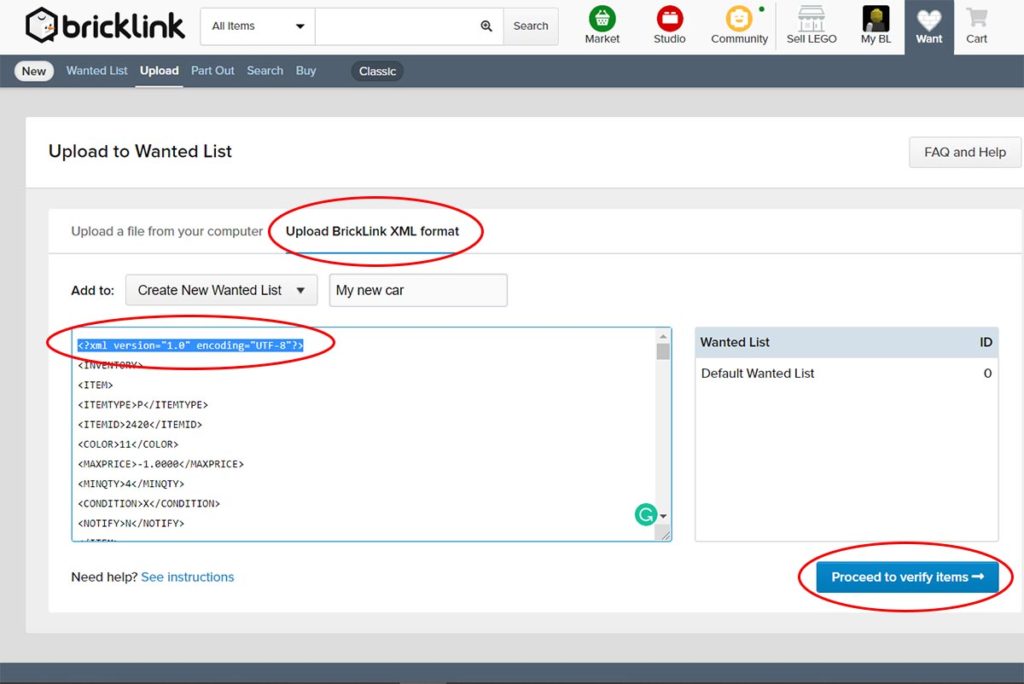
Go back to BrickLink and click the second tab labeled “Upload BrickLink XML format”. Select “Create New Wanted List” from the drop down menu and Name it however you want. Click into the empty field and hit ctrl+v to paste the whole code in. Than delete the first line so that the text starts just with the <INVENTORY> tag. This is important otherwise the parts won’t load. Then hit the “Proceed to verify items” button.
Review the parts list
All the parts will load up for you and you can check everything if you want or just click “Add to Wanted List” button at the end of the list.

Navigate back to your wanted list
Now your parts list is saved as a new Wanted list and you can find it under Want/Wanted list from the top bar. There are two buttons next to each Wanted list. The “Easy buy” button will instantly select and combine the best stores all around the world that have all the parts that you need. Sometimes a single shop has everything in stock but more often it will be 3-5 stores each covering a part of your Wanted list. The downside to this is that you can’t filter stores by price or location so I recommend using a different approach by clicking the “Setup” button instead.

Buy all the parts
Here you can hit “Buy All” button right away. Or you can again review or edit the parts list here if you want. I generate the parts lists automatically from Stud.io so there can be no errors or missing parts however there are several variants for most parts and new ones come out quite often. So you can review and swap anything you desire here.

Filtering stores
Now you can filter and select stores you want. Select country you want to order from, currency and other options (read the tooltips they have all the information you need) and hit “Auto-select”.
In the popup window uncheck the box and hit “Start”.


Final check
BrickLink will automatically select most optimal orders for you and if everything seems alright for you, you can hit “Create carts” right away and proceed to order the parts. It should be straightforward from this point. Congratulations! Your parts are on the way!
However, if the price seems too high you can try to change a few things around. You basically have two options here. If you hit the “Edit” button it will open up the list of parts that make the particular order and you can just delete the parts that seem too expensive (some shops charge a lot for particular parts – much more than they should). Or you can just hit “Remove” which will remove the whole shop from your orders. But how do you add the missing parts back? Don’t worry, as you can see in the bottom part there is an updated list of shops that have everything that is missing from your order and you can add them back to your list. Notice that up on the page over your list, there’s a line which says in my example 168/170 assigned (98%). If it says 100% you’re good to go. Nothing is missing and the price seems right now so you can hit “Create carts” and proceed to order everything you need.


Still Need a Hand?
Email me and I’ll get back to you within a few hours. I’m happy to help with any order or parts question.